Lifetime of OUAS user accounts
According to the General Data Protection Regulation (GDPR), we are not allowed to store emails or other data for former students or employees. Your account will be locked, and you will no longer be able to log into OUAS IT services when ending your studies or employment. After a short period, your account, and all content, will be deleted.
Students have an extended grace period of 60 days, with the option to extend for 30 more days, before their account is locked and all data is deleted. This is to ensure that students can access feedback on exams, etc., but also so that they don’t lose data if they start a new course the following semester.
What does a locked account mean?
- You will no longer be able to log in on OUAS computers using your username and password.
- You will lose access to the OUAS email system, and the emails stored there.
- You will lose access to all other IT services like MineStudier, WiseFlow Canvas.
- You will lose access to OneDrive, Teams, Microsoft 365 (Word, Powerpoint, Excel etc), and all other cloud services that you have had access to via your OUAS user account.
What to do before you loose access to your user account
Download your private data
It is relatively simple to download documents and files from OneDrive.
Depending on the speed and stability of your internet connection, as well as the amount of data, it might be a good idea to do this from campus. You can visit the IT desk for help with this if you want.
- Go t0 https://hiof-my.sharepoint.com/ og log in
See login guide - Click "My files" in the left hand menu
Click the "Select all" box at the top of the list (only visible when hovering over it).
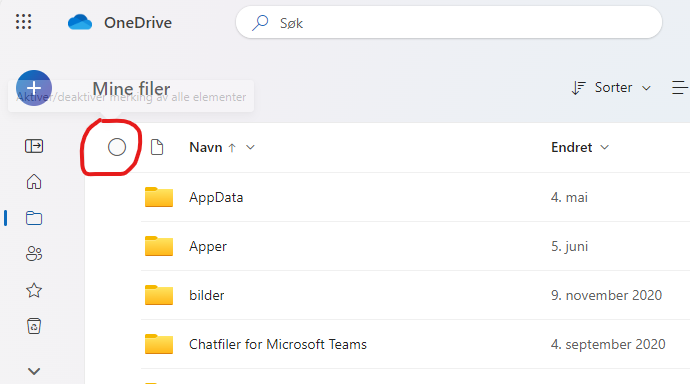
- Once you have selected all the items, a new menu will appear at the top of the screen. In this menu, you will find the option "Download". Click on it.
- The download may take a little time, depending on how much you have saved in OneDrive.
When the download is complete, all data is saved in a .zip file. Open the folder where you downloaded the file and right-click on it, then choose 'Extract'.
Choose where you want to extract the contents. If you want to save your files to an external drive, you can extract directly to it.
If you’re going to move the files to another cloud, you can create a temporary folder to extract them to. Once the extraction is complete, upload the contents of the folder to the cloud you’ve chosen.
Remove the OUAS affiliation from your personal PC
When logging into the Microsoft 365 applications on your own PC, the machine gets registered in our systems. We delete students' devices from our side after they have left, but this is not recorded detected by the device in question. To remove the affilliation locally on your PC, do the following:
1) Remove the account affiliation in Windows:
- Open Settings on your PC.
- Click on "Accounts" in the menu on the left side.
- Scroll down and click on "Access work or school".
- Find your account in the list, it will be listed as "username@hiof.no / Work or school account".
- Click on the account.
- Click on "Disconnect".
2) Reset Teams:
Teams can be tricky to fully log out of if the account you want to log out of is inactive. The easiest way is to reset the app.
- Open Setting on the PC.
- Click "Apps"
- Click "Installed apps"
- Search for "Microsoft Teams"
- Click the "..." button and select "Advanced settings"
- Click "Reset" under the reset heading
3) Log out of all other Microsoft 365 apps
- Open one of the Microsoft 365 apps (ie Microsoft Word)
- Click "Account" (or "File" > "Account")
- Click "Log out" on the OUAS account
4) Remove saved credentials
- Open Control Panel
- Find "Credential Manager"
- Under "Windows credentials", find and delete all credentials affiliated with you OUAS user account
Restart your computer
Inform important contacts and set up a "change of address" notification for email
Inform important contacts about how they can contact you after you leeve OUAS. Stop all email subscribtions on your email account, and make sure to move all the subscriptions you need to keep to your new email account.
Employees should set up an automatic reply for their user account some weeks before leaving. The automatic reply stops 24 hours after leaving OUAS.